
Best for:
- Creating labels for international mail, lightweight items and merchandise
- European Business Customers sending worldwide
This API provides an interface for Deutsche Post International packet shipping and tracking services. It enables open integration channels for our customers and partners.
Who is it for?
- European business customers(EU an non-EU) shipping worldwide
Services
SHIPPING
GOODS
Our shipping products cover tracked and untracked services for light-weight goods of up to 2kg. Depending on your contract with us, the following services are available
- Packet Tracked
- Packet Plus
- Packet (Standard / Priority)
- Packet Return
DOCUMENTS
- Business Mail Registered / Letter Plus
- Business Mail (Standard / Priority) / Letter
Generally, the API provides:
- Packet label
- Airwaybill (AWB = transportation document)
- Customs document (CN22)
TRACKING
The tracking service operation is used to inform you about the status of your trackable shipments. The resulting response will provide tracking events advising the whereabouts and status of your packets.
You can either track on the shipment level based on the AWB number or on single item (= packet) level based on the item barcode. For further details please go to the dedicated tracking section.
More details on the relation between order, shipment, item and content item can be found here.
Using the API
The API is provided as ReST API using OAuth 2.0 for authentication and authorization and JSON format for request and response messages.
The API uses HTTPS (over SSL) protocol, the HTTP GET is used to retrieve data and HTTP POST is used to create, update or delete data.
Get Access
- To request access for our Production and Sandbox environments you have to sign up. To sign up, please get in touch with your local sales representative. You can contact them via the contact form.
- You will receive your credentials.
- Check this User Guide documentation to understand how to get a valid Access Token and submit shipments or get tracking information.
Note: The Sandbox environment is currently not directly accessible from this documentation page.
Authentication
Access Token
The API provides an OAuth 2.0 access token with various authorization scopes.
The access token can be used to authorize access for the Deutsche Post Shipping API.
Get Access Token
The Get Access Token API call provides OAuth 2.0 Bearer token with authorization scope, assigned to your client id, which will grants you an access to the Deutsche Post International Shipping APIs.
The API operation is secured by HTTP Basic authentication, therefore you have to provide Consumer Key and Consumer Secret as an username and password, when calling the API.
Example:
You will receive Consumer Key and Consumer Secret from Deutsche Post International representative in following format.
Credentials bellow could be used in this Sandbox environment to get the Access Token.
(Business related requests are not possible with these credentials.)
Consumer Key: 5qsFCFLzeoz4C6PKJ7yH3NDQHgBEJLt7
Consumer Secret: P6mEGGaAZ2TdkLpD
When passing the Consumer Key and Consumer Secret via HTTPS request, using HTTP Basic authentication, you have to populate HTTP Header Authorization in following format.
Note: Consumer Key and Consumer Secret has to be encoded in base64-encoding. There is a space character between Basic and the base64-encoded string. There is a : character between the Consumer Key and Consumer Secret, when encoded in base64-encoding.
Authorization: Basic base64-encoded(Consumer Key:Consumer Secret)
Authorization: Basic NXFzRkNGTHplb3o0QzZQS0o3eUgzTkRRSGdCRUpMdDc6UDZtRUdHYUFaMlRka0xwRA==
Note: You can test the Get Access Token API directly from the documentation page. The Authorization HTTP Header was populated for you in the Console View on the right side of the screen.
You will receive following response in the JSON format.
{
"access_token": "tlFkkjplZ8CyAKLq9BFyP1vqBMxX",
"token_type": "Bearer",
"expires_in": 17999,
}
Understanding of the response fields: access_token: Contains Access Token string for the Shipping / Tracking API authentication and authorization.
- token_type: Type of the OAuth 2.0 access token. Default value is "Bearer".
- expires_in: Time to live of the access token. Default value is 18000 seconds / 5 hours. After this time the token expires.
- scope: Authorization scope of access token. Default value for Shipping API is "dpilabel". It could contain multiple scope values, which will be separated by space character.
Access Token Info
The Get Access Token Info API call provides an information about the issued token.
Revoke Access Token
The Revoke Access Token API call provides you an option to revoke your Access Token, which not yet expired.
Environments
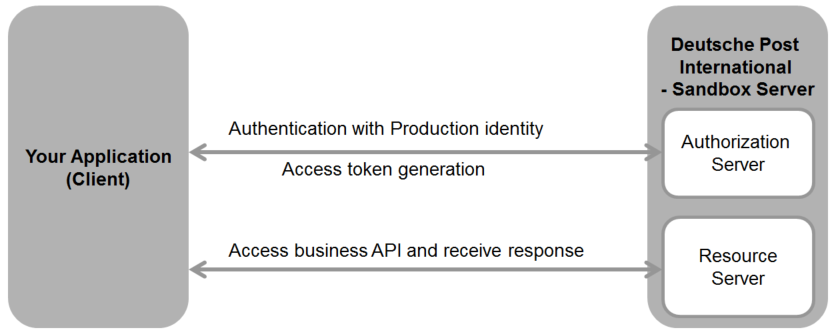
Deutsche Post International provides Production environment as well as Sandbox for development and testing.
Access to both environments is managed and you have to use OAuth 2.0 Access Token, when accessing the API resources.
Access Token could be requested via Get Access Token API, where you have to provide your API credentials: Consumer Key and Consumer Secret.
Note: You will have different identities for Production and Sandbox environment.
Sandbox:
You can use the Sandbox environment for development and testing purpose.
Sandbox Base URL: https://api-sandbox.dhl.com
Sandbox provides the same APIs as Production environment. >Note: The APIs exposed on Sandbox could be called directly from this documentation.
Production
For production purposes please use the production environment. The production environment hosts the same APIs as the sandbox, but with different base URL.
Production base URL: https://api.dhl.com
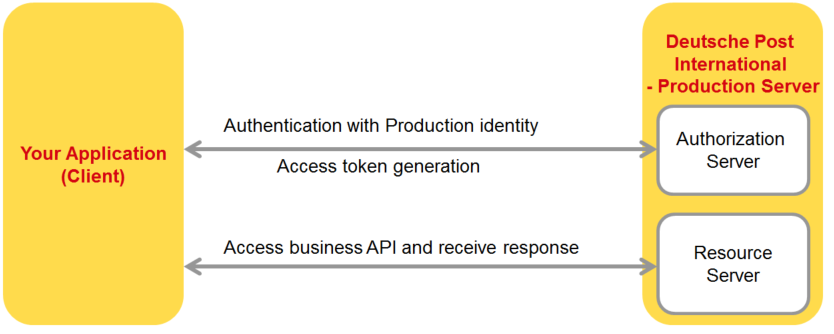
Important note: Please keep in mind that sandbox credentials are not valid for the production environment. To access the latter, please use the production set of credentials provided to you during on boarding.
Rate limits
For all API calls there is a rate limit applied. Default limit is set to for each client to allow 15 requests per second per API call.
For Trackings API ("Get Trackings" and "Get Tracking - Shipment"), there is applied the additional limit allowing to send only 1 tracking request with a specific barcode/awb in 1 hour.
When the limit is reached you will recieve an HTTP Status code 429: Too many requests.
Additional information
First of all it is important to understand the relation between order, shipment, item and content item in our context.
Items (or Single Shipment) are the packages, which you want to send to your customer with his address and eventually a S10-Barcode on the item label.
The order is some kind of wrapper, where you can add all your items you want to send. After finishing the order creation process, your items will be split into different shipments which can be identified by an Airwaybill (AWB) Number. The AWB Transport document issued by a carrier or a forwarder towards the business customer. The content item is relevant for customs declaration only, where you have to show, which contents are inside of an item (package).
Splitting the items into different shipments depends on which combination of product and service level they have. Items with the same product and service level are referred to the same shipment (and AWB Number).
Order content relation

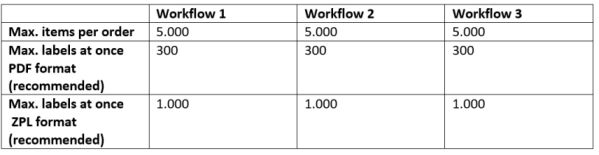
There are 3 ways to create an order via our API:
- Workflow 1 – low flexibility
Create an order, where you add all items at once
Create an order where you send all items at once during the create Order API call (Note: orderStatus = FINALIZE).
This is recommended, if you know all items you want to ship at once. This workflow does not allow you to delete items from a shipment. Once items are assigned to a shipment, they should be sent out with that particular AWB.
- Workflow 2 – medium flexibility
Create an order, where you add items one by one
Create an order where you add items one by one during the day/your process (Note: orderStatus = OPEN) and finalize the order at the end of the day/your process.
This is the recommended way, if you don’t have all information about the items you want to send at once but incoming orders are processed step by step. This workflow allows you to delete or update items from an order/shipment.
- Workflow 3 – high flexibility
Create and print labels throughout the day without creating an order
Items are processed and labels are printed individually after creation or in bulk at the end of the day/your process. It is not decided until later, which packages will be sent out at the end of the day/your process. An order is created and the AWB are printed once it is clear which items are going to be shipped.
This workflow is recommended for customers and partner platforms seeking full flexibility in the processing of their incoming orders
Workflow 1: Create an order, where you add all items at once
- Create Order (orderStatus = FINALIZE) by requesting CreateOrder, sending all information for items and paperwork at once. The response includes important information about itemIds and AWB Number, which you need in the further process.
- Get all item labels per AWB by using the AWB Number you got from the first call by requesting Get Item Labels for each AWB Number.
Or print labels individually by itemId you received in the createOrder-response.
- Get all AWB labels for each AWB Number you got from the first call by requesting Get AWB Labels API for each AWB Number.
Workflow 2: Create an order, where you add items one by one
- Create Order (orderStatus = OPEN), sending no extra information about paperwork or items at this point. The response includes information about the order ID, which you’ll need in the further process to add items to this order. (Note: You can open several orders in parallel if suitable differentiated by orderId).
- Add items to an order by requesting Add Items to an Order. This step can be executed multiple times until all items you want to send are published.
- Get label for each item you created in step 2 by requesting Get Item Label. Or print all labels per AWB in one call (see step 6).
- Finalize the order by requesting Finalize Order and sending some further information explained in the API documentation.
- Get all AWB labels for each AWB Number you got from the first call by requesting Get AWB Labels for each AWB Number.
- Get all item labels per AWB by using the AWB Number you got from the finalize call by requesting Get Item Labels for each AWB Number.
Workflow 3: Create and print labels throughout the day without creating an order
- Create single item.
- Print label by requesting Get label for item.
These two steps can be executed multiple times, until all items you want to send are published.
- Creating an order for existing single items with the order data/paperwork and the items that shall be assembled to a new order by requesting CreateOrder.
- Print AWB by requesting Get AWB Label.
specifics for the use of deutsche post international api
These Legal Terms do not replace and/or modify the “General Terms and Conditions Deutsche Post AG International Business, Dialogue Marketing, Packet” or any other mail and/or shipment services agreement, which govern Your Deutsche Post International shipments and mailings.
In case You act as a commercial agent on DEUTSCHE POST AG’s and/or its affiliates’ behalf, i.e. with DEUTSCHE POST AG’s and/or its affiliates’ consent, You are obliged to refer the customer (i.e. the sender of the shipments/mailings) to the relevant terms and conditions for shipment and mailings of Deutsche Post International (https://www.deutschepost.com/en/business-customers/tac.html).
You shall use the services and/or data that You receive via the DEUTSCHE POST INTERNATIONAL API only for the legitimate contractual purposes and only in connection with Your Deutsche Post International shipments and mailings or other services, and in compliance with all applicable laws and regulations, including but not limited to, laws regarding the use of personal data.
When data or information has been sent or received outside of Deutsche Post International’s business hours, the processing of data and/or execution of the services will start according to the terms and conditions set out in the applicable Agreement or, absent thereof, as soon as reasonably practicable.
The following additional prerequisites and/or restrictions apply for the usage of data or information received via the DEUTSCHE POST INTERNATIONAL API:
- Shipping:
- Please note that the receipt or printing of the airway bill or label does not constitute the contract of shipment. Such contract will be concluded when the labeled shipment is picked up or posted and accepted by Deutsche Post International.
- Tracking:
- You may only share tracking information with the shipper and the recipient of the Deutsche Post International shipment/mailing and no third party.
- The submission of tracking information shall always be in compliance with applicable laws in the field of data protection and competition law, which includes that the data shall not be combined with advertisement or presented in a way that it could be regarded as advertisement.
- If You are neither the sender nor the recipient of Deutsche Post International shipments/mailings, the tracking information refers to,
- You shall ensure, that you are authorized to act on behalf of the sender;
- You shall make the sender aware of the restrictions set out in these Legal Terms just as the General Developer Portal Terms of Use;
- You shall make the sender aware of the necessity to inform the recipient transparently about the processing of his/her personal data according to applicable data protection laws.
- In no case shall you reveal and/or provide third parties with the airway bill number/shipment ID and/or tracking information and/or analyze, modify such information in any form and/or derive data/information especially for competitive reasons from it without our prior written consent.
- Tracking information shall be used in accordance with the following specification: Display “Delivered by Deutsche Post DHL Group“ in text (minimum font size) as soon as it is presented/submitted to recipient.
- You shall delete the airway bill number/shipment ID and tracking information 180 days after the last tracking event is completed. Last tracking event shall be defined as the actual delivery unless otherwise agreed.
Starting with GMPP: basic documentation
- How to start shipping with us (for customers): https://www.deutschepost.com/content/dam/dp-int/Business-Customers-Europe/Downloads/dp-how-to-start-shipping-with-us-022019.PDF
- DPI in Post & DHL Shipping App for Shopify: https://dpi.docs.dhlshipping.app/
- Dispatch of dangerous goods in International Commodity Post
The dispatch of dangerous goods in letters - and thus also by international goods post - is excluded. The customer can find information in the above-mentioned leaflet, which can be found on the Deutsche Post Homepage https://www.deutschepost.de/de/b/briefe-ins-ausland/unzulaessige-inhalte-gefaehrliche-gueter.html.
Please also refer to our service description in English here:
https://www.deutschepost.com/content/dam/dp-int/Business-Customers-Europe/Downloads/dp-service-description-en-012020.PDF (page 18 onwards).
GMPP implements Delivery Duty Unpaid (DDU)
Our integration supports international VAT schemes such as IOSS and VOEC. Please refer to the documentation for further details on how to submit the VAT reference. You can also find additional information about IOSS here: https://www.deutschepost.com/en/business-customers/insights-news/import-one-stop-shop.html
There are three ways to create an order:
- Create order and add items in one step. Print all item labels and AWB of the order. This is the least flexible solution but suitable for small customers with limited quantities of packages.
(named: “create order finalize logic” or “1st way logic”) - Create a new empty order, add and print items over the day (not literally, your personal period of time)[BL(PU1] . If end of day or maximum number of possible items (5000) reached, finalize order and print AWB. Most common implementation for medium sized retailers.
(named: “create order open logic” or “2nd way logic”)
Create single items for a specific customer order and print the label. Combine specific labels into an order and create the dispatch AWB. Suitable for larger customers, fulfilment warehouses or 3PVs who need to be able to manage their different customers.
(named: “customers logic” or “3rd way logic”)
[BL(PU1]Ein wenig unschlüssig, geht es über den Tag verteilt oder nicht??
Create and print labels throughout the day / your process without creating an order. Items are processed and labels are printed individually or in bulk and it is not decided until later, which packages will be sent out at the end of the day/your process. An order is created and the Airwaybills are printed once it is clear which items are going to be shipped. This workflow is recommended for customers and partner platforms seeking full flexibility in the processing of their incoming orders.
1. Create an item without an existing order by requesting Create Single Item API
2. Get label for the item created in step 1 by requesting Get label API for item using the barcode received in step 1
3. Repeat Step 1 + 2 to retrieve all labels in scope
4. Create an order by listing all relevant items and requesting Create Order API
5. Finalize the order by requesting Finalize Order API using the order ID received in step 4 and retrieve the AWB label(s) Credentials
No, both environments are fully distinct and ths use separate credentials
Because they are just examples, so only getting a token works to show the principle. Furthermore, we don’t want everybody to fully try out our systems but only with a proper registration via our local sales departments.
Yes, there are no restrictions on using credentials from two locations.
Not necessarily, as the credentials are bound to an email address your email address can be connected to more than one company with no need for additional credentials
You can view the lifetime from the expires_in field of a retrieved Access Token at any time.
Currently a token is valid for max. 300 minutes.
The current token lifetime cannot be guaranteed, as technical requirements may lead to changes. Please consider refresh functions when implementing.
Only the “manifesting” or “finalizing” of an order transmits all order data into the systems of DHL/Deutsche Post and all subsequent systems, e.g. international Tracking systems and customs authorities.
Yes, you should use one of these per request, the type is determined by Header Parameter ACCEPT
- “Accept:application/PDF” (A6)
- “Accept:application/PDF+singlepage” (A6)
- “Accept:application/PDF+singlepage+6x4” (6x4 inch)
- “Accept:image/png” (A6)
- “Accept:image/png+6x4” (6x4 inch)
- “Accept:application/zpl” (A6)
- “Accept:application/zpl+rotated” (rotated by 90 degrees for label printers)
- “Accept:application/zpl+6x4” (6x4 inch)
- “Accept:application/zpl+rotated+6x4” (6x4 inch and rotated by 90 degrees for label printers)
No .jpg yet
No, only item labels can be printed in these types. AWB labels are always printed in PDF format regardless of the setting of the ACCEPT parameter.
To be precise, it’s “Get label”, because the API does not contain printing functions itself but returns the binary content of labels in various “printer languages” (pdf, zpl, png). After calling, the response of a "Get Label" request is the label data itself. So there is no “file save…” dialog but the response.content has to be saved, according to the possibilities of the used programming language.
Be aware that PDF and PNG responses are binary data, so absolutely _NO_ encoding or text saving methods has to be set (there is always a 'save response "as-is" 'method). Saving PDF in a Text format instead of binary/raw causes line break structures in the file, which pdf readers can't deal with. Thus, resulting files might have data in it, but show empty while opening.
ZPL is text based format so UTF-8 or ANSI encoding while saving the data will work.
The label standard sizes are (German) DIN A6 (quite _almost_ 6x4 inches) for item labels, or you chose 6x4 resp. 4x6 inches, so Standard ZEBRA Labels will fit. There is no item A4/A5 format (because the label sizes itself are fixed due to international harmonization). You can change the output types by choosing one of the other accept options (see above).
Preset for AWBs is German DIN A4 (full page).
No, this is not possible
Yes, if you print all items of an AWB at once, you get up to four item labels printed on one page (if A6 paper is used).
You might override this by using "PDF+singlepage" format.
But in case of a larger AWBs (several hundreds or thousands of items) you will possibly get a really big bunch of paper...
Yes, use ACCEPT: PDF+singlepage. Each label will appear on a different page (of the same PDF).
Yes and only after the order completion an AWB number will be available
The API supports the following 3 character sets and all characters that can be represented with them:
Free Sans
Free Sans Bold
FreeSansOblique
Characters are obviously used here that cannot be represented in our 3 standard character sets.
- (e.g. Asian characters.)
- Incorrectly coded umlauts
- control characters like tabs or line breaks
Try to get the item content with the “get item” request to see more.
You might possibly update your Item(s) with a PUT request to eradicate non-printable characters
If possible, try to set the accept parameter temporarily to “*/*” to get at least an error message.
Usually it's due to non-printable characters.
A Non-allowed list would be _very_ long (quite all asian characters,...), so please use only Latin characters within the fields.
Yes, in area of UTF-8 or ANSI
Please contact your Account Manager to check your account settings. Because of address validation on the DHL Express side, it should always be double checked that the spelling of the (sender’s) address in the Globalmail customer portal is the same as on the DHL Express account.
Getting a single item gets one specific item, determined by the itemId (Workflows one or two) resp. the barcode (only in "customers" workflow). Get awb/itemlabels gets all items of an awb, determined by the awbID.
Yes, there are limits of time and size of the item printing response. The overall timeout limit is 300 seconds and the overall „file“/DataStream limit is about 20 Mbytes. If the limit is exceeded, no label will be printed (no partial label printing because it's all one single response stream).
Practically, assuming an average label size of 25 for a ZPL and 80K for a PDF label, the practical limits for AWB/item labels are about 250 PDF type labels or 1000 ZPL labels. This only applies for printing all labels of an AWB. Printing single labels is always safe.
You can only list your AWB with the get AWB/get order statement, save the itemIDs and print them single within a loop.
Partial printing of the items of a large AWB is not possible.
Because items to Germany are treated by Deutsche Post only and are adapted to specific needs of Deutsche Post
Because Express uses a different channel and so labels are adapted for specific needs of EXPRESS.
Basically, the allowed area for a customer logo is only on the left side of the label. Placements of customer logos on our labels are not desired. Here are the allowed examples below:

Please adjust the delivery character "R" in the barcode area. The correct font is Arial and the size is 102 pt. And please place the heading "EINSCHREIBEN Einwurf" centrally above the barcode.
Untracked labels start with a U
Tracked labels start with an L
Plus (Registered) labels start with an R
The return address is maintained in the customer's master data and is then always included in the postage paid indicia
Customers are asked not to add a returns address. All undeliverable items will be returned to your unique Deutsche Post returns address and forwarded to you. For customer returns (unwanted item) please ensure to include Returns information within the package. The Deutsche Post returns address cannot be used for this purpose.
Each customer has a graphic signature file stored in the customer’s base data which is printed on each CN22 label automatically.
Please provide an image of your preferred signature to your Sales Office who (only) can upload this to your account.
Jpeg, Max. 10k (10240 bytes) size, 100px W x 40px H max
Black ink on white preferred.
No, the signature file is connected to the company and uploaded by the sales department. Each company can only have one signature file.
his is a known issue and it will be solved in the future. Until then, two options are available:
- Reduce the text length, so that it does not overlap with the weight and value of the content item
OR
- leave the size as it is, even though it is overlapping with other information, each information is still readable and will be correctly transmitted digitally as well.
Yes
Our standard timeout value is about 30 secs, except label request which last max. 300 seconds.
General rate limit is now set to 15 requests per second, identical POST requests are only allowed once in 30 seconds
GET requests with identical ids once in 20 seconds
Tracking requests of a single barcode or AWB-No. only once every 1 hour. That became relevant because some customers requested track events too often, i.e. up to once every minute.
It is the values that should be set into the field ‘customerEkp’ in CreateOrder request.
Express customers have a 9 digit EKP and DPI customers a 10 digit EKP
Yes, finalization of an Express customer order always needs a mandatory telephone number entry in the paperwork which is not necessary for a DPI customer.
Job reference is an optional field for customers to mark the waybill (appearing on the AWB and your bill, e.g. for your marketing campaign).
Yes, for DHL Express it is a label for consignment, but a posting document for DPI.
Types are (as found in the swagger file you can download from the docu page, of type enum):
- CUSTOMER_DROP_OFF
- SCHEDULED
- DHL_GLOBAL_MAIL
- DHL_EXPRESS
At least one type has to be set at your customer data by sales department to use them. Usually, CUSTOMER_DROP_OFF should be applied to all customers.
For Express customers, usually individual contracts are given, so the selection in the request does not affect the real pickup but is only a value for the request itself.
YES, it’s CUSTOMER_DROP_OFF (yet, it has to be activated in the customer’s base data in the portal)
Deletion of an order is not possible. Without finalizing, an open order will be deleted after 180 days without further notice.
Order data will be automatically deleted after 180 days. While an order is still open, it is shown in the customer's overview section in the portal.
Of course! You can leave the order in status open for a maximum of 180 days.
Example:
You pack and print labels until 1pm in the warehouse because the shipping will be picked up at 2pm. After 2pm you would like to open a new order, but if this is a Friday you would like to continue adding labels to that same order. On Monday morning when everyone is arriving you can add items to the order, which you can close at 1pm so all is ready for the 2pm pickup.
Yes. More than one order can be in the status “OPEN”. But it is not possible to open more than one order within a single API call.
Unfortunately there is no list of open orders or a call that you can use to retrieve all open orders. You have to make sure that you (temporarily) save the orderID within your software so that you can work with the (open) order.
Yes! If you create an order with status “open” the request does not contain the shipment(s) with return of an AWB number, but if you create an order with status “finalize” the request contains the shipment(s) with an AWB number. This is caused by the fact that the allocation of the items to the shipments is only done for a finalized order (either directly by setting the order status to finalize or finalize the order afterwards).
These codes are generated by the system only.
Of course. An order can contain items of all types. The finalization, however, will create specific AWBs for specific item types (so you might possibly get more than one AWB in the response). For DPI customers, every type of item results in a separate AWB with exception of „Mail priority“ and „registered“ which will joined into one AWB. Express customer orders will always result into one AWB.
Receiver of an item is part of the item data itself. When fetching an item from the API the receiver data will be part of the response.
- Packet = ”RS”
- Packet Plus = “RS”
- Packet Tracked = “LY” and “LZ”, generally speaking “L?”
- Packet Tracked (Destination Germany) = “RS”
- Packet Return = “QL”
- Untracked = "UQ"
- Portal only = “LC”
|
Product code |
Service level |
Name of service, description |
Barcode identifier (starts with) |
|
GMP |
Priority |
Packet Priority, untracked shipments |
UQ |
|
GPP |
Priority |
Packet Plus, tracked and registered mail (signature upon delivery) |
LY /RS / LX |
|
GPT |
Priority |
Packet Tracked, tracked mail (no signature required) |
RX / RS |
Yes, the order field awbCopyCount, part of the paperwork section, determines the number of AWB labels printed. Given, value is set to “x“, the resulting labels are numbered from “Copy 1 from x“ to “Copy x from x“.
The awbCopyCount parameter is set for the finalizing and can't be changed afterwards.
All copies of an AWB label are included in the one AWB label file data (you will receive an PDF file with x pages).
Yes, multiple EXPRESS AWB labels differ in barcode also ( it’s no unique barcode but a barcode sequence) so each of the AWB labels is truly unique. DPI AWB labels contain an “Copy x from y” line but the barcode is always the same (so they are only numbered copies)
awbCopyCount can have up to „99“. Minimum value is „1“and has to be set explicitly (mandatory field).
Set the parameter returnItemWanted in the item description to “true”, don’t use the (internal) product type “GPR”. Be aware: Packet return is only available for specific EU countries, you will receive an error message trying to create returns to other destinations.
The return Label is included with the item label in the same bitstream (like an additional page in the label ile). It’s no separate document and no separate saving is necessary.
Yes, an order can contain up to 5000 items overall. In a single step a maximum of 2500 items can be added. If you choose the „create order finalize logic” or the „customers logic” model, 2500 is the maximum (because it’s single step add_and_finalize ). Be aware that overall item label printing of a 5000 item order will surely result in a timeout error so single printing of the items (e.g. by single request or using a loop) is highly recommended.
The maximum number of possible content blocks is 25. But only the first five lines will appear on the items label (corresponding with the number of content lines in the internationally harmonized CN22 forms we use.).
But all 25 blocks wil be transmitted to subsequent systems.
Yes, in the "Create order open" logic you can delete an item from an order with the deleteItem call. Be aware that is is only possible if the order is not finalized yet.
A successful deletion generates _no_ specific message but only a 200/OK state. A second attempt to delete a specific item gives an error message (usually a “permission denied” error).
Yes, you can update an item with the update method request. („Create order open" and "customers" logics). You have to call the update request with the complete item content as the body (and the appropriate fields changed; single field update is _not_ possible). The item content may be achieved by the get item statement before. This may for example be useful if an item is not printable due to unprintable content. The itemId and barcode within an update item statement are ignored (even if contained in the item body)
You can‘t change the following fields in an existing item:
- Product
- ServiceType
- Destination country
However, we recommend to use a deletion/new approach if possible.
An Item which is in a finalized order (aka "AWB") can't be changed anymore.
Yes, you can use both methods to create orders, but the resulting orders are strictly separated. Orders created via portal upload are only accessible / editable via the portal, API created orders only via the API. Tracking information of items and AWBs are visible in portal for both variants, though.
If you click on "Show JSON Schema" in the docu for the response, you will see the field lengths for most fields.
The country of origin is based on ISO-3166-1 and means the country where an item is produced.
Background / use cases
We provided two new fields on all touchpoints in order to facilitate customs processing and prepare for tax requirements in connection to Brexit. Important: They are an offer to our customers in response to the latest developments:
In countries such as Norway, our customers (or their customers) already have to pay taxes on goods that are being shipped to Norway. Until now, we had a workaround in place where customers could indicate their Norwegian tax ID in the customer reference field. As of 5th of November, customers can indicate their tax ID under “sender customs reference” and indicate the recipients’ tax ID in the “importer customs reference” field if applicable.
Another example is the UK. Since Brexit has come, customers can register as a shipper in the UK to ship goods VAT-free to a recipient abroad. By indicating their tax ID in the “sender customs reference” field, they will get all applicable taxes invoiced to this ID without having to involve the recipient.
Due to data protection reasons it is not printed on the labels .The data will be submitted electronically to the recipient’s country, however.
Just use the item field custRef, possibly with an additional Text (e.g. „TaxID: <this_is_customers taxid>“. It’s printed in the upper part of the label.
The EORI number (Economic Operators' Registration and Identification) is the successor to the customs number at EU level. It is used to identify economic operators and is intended to facilitate automated customs clearance. Without a valid EORI number, customs actions in the EU are in principle no longer possible (except for private individuals who only occasionally - less than 10 - submit written or electronic customs declarations [1]). Each self-employed economic operator with legal capacity [2] will in principle only receive a single EORI number, as this is used as an EU-wide identifier. [3]
The EORI number can contain up to 17 characters. It starts with the two-character country prefix (ISO 3166) of the respective Member State that assigns it, followed by up to 15 characters. In certain cases, additional country prefixes may be included.
We recommend the usage of senderTaxId for setting the EORI/IOSS number
The IOSS Identification number should be included as part of the data submitted for each single shipment. It will be embedded in the data when the label data is created and shipment is submitted.
The field is called
• Sender customs reference (Portal)
• senderTaxId (API)
The field allows for max. 35 characters, it will not be printed on the label. The IOSS number is not mandatory.
The obligation to enter IOSS only exists if a customer or the platform via which the customer is shipping, is registered for IOSS. However, registration is not compulsory for most customers.
For multiple IOSS numbers, shipments need to be split, so for each shipment only one IOSS number can be provided.
„State” means a state (like „California” in the United States), a province or a district (in Germany: „Bundesland“ or „Region“). Usually this is covered by the ZIP code/Postal code, so it’s not a mandatory field and not verified in any form. Not to be confused with „country“ field.
DPI:
|
Product Code |
Product Name |
Service Level |
|
GMR |
Mail Registered |
Registered |
|
GMM |
Mail Standard |
Standard |
|
GMM |
Mail Priority |
Priority |
|
GMP |
Packet Standard |
Standard |
|
GMP |
Packet Priority |
Priority |
|
GPP |
Packet Plus |
Priority |
|
GPT |
Packet Tracked |
Priority |
Express:
|
Product Code |
Product Name |
Service Level |
|
GPP |
Plus (goods) |
Priority |
|
GMP |
Prio (goods) |
Priority |
|
GPT |
Tracked |
Priority |
|
GMR |
Plus (documents) |
Priority |
|
GMM |
Prio (documents) |
Priority |
In the service description on the https://www.deutschepost.com/en/business-customers/tac.html
Express AWB generation failure: code: DCT_0001, message: The requested Global Product Code R and Local Product Code R is not available between this origin and destination. Please make sure data entered is valid before proceeding or contact our customer service
It‘s a limitation by the EXPRESS backend system, concerning the overall weight of (all items in) an AWB which must not exceed 300 kg for common European sender countries (and which is validated since 2021 whereas we had no limit from the API before).
Because we are not able to change this on the fly (it's an EXPRESS limitation which we are currently are in the process of resolving), a workaround would be to reduce the number of items in the order by splitting it into 2 or more shipments (and to introduce a warning for future orders should they exceed the weight limit, if possible).
GPR is an internal product name only and can’t be used in any request. Please use the “returnItemWanted” field in the item description block instead to create return labels.
|
Postal Codes can be empty or between 3-13 characters, Numbers and letters in caps only, spaces and dashes in between are allowed (examples are „012ABC-345DE“ or „53113“). |
Item[0] in the error does not mean first item of the request but the first item of the erroneous items. Due to the multithreading approach of the backend this item does not correspond with the items from the request so this could be item[0], item[3] or item[127]of the original request …
contentPieceValue is interpreted as currency, so the format has to be:
-
- One to four digits before the decimal point, _exactly_ two digits after the decimal point (means: 0.01 to 9999.99), i.e. contentPieceValue":"42.3” is not allowed, has to be contentPieceValue":"42.30”
_OR_
-
- Without a decimal point, one to seven digits are allowed, take “1”, “123” or “9999999”, but _not_ “12345678” OR “123456.00, meaning the contentPieceValue can range from 1 to 9999999)
- Values of 0 in any form ("0" , "0.00",.. ) are NOT allowed
There are several possible reasons:
- Violation of company permissions. A user may use credentials (bound to an email address) which is not connected to his company. Please contact your sales or support contact (because this should not happen)
- For 3PV based customers this can mean the customer / the EKP is not set as a client of this specific 3PV (to which this email address belongs). Sometimes we don‘t know that a customer uses a 3PV so the appropriate option is not set. Please contact your sales or support contact to correct this
- Violation of object specific permissions. Error messages are not necessarily due to the user's lack of rights in the customer administration. Rather, in most cases the cause is to be found in the lack of rights to the affected object itself (for example, because it does not exist, it is attached to another EKP or the user has no access to it for other reasons). The desired operation on an object is therefore not possible for this user for various reasons.
The analysis usually requires the complete request chain that led to the message (because the error may have been caused by a prior request).
Examples:
- Object to be printed does not exist (for label/AWB printing).
- Object to be deleted does not exist
- Item to be added to an order does not exist
- Item cannot be deleted because it is already in a finalized AWB.
The item data contains invalid or not printable characters which are not included in the Open Sans font family. If possible, correct them via an item update request.
Usual “suspects” are Asian or control characters like tab or linefeed which can occur with windows copy/paste operations or multiple line input fields in customer software.
Only 25 content blocks per item are allowed, which the first five are printed of (because the CN22 form contains (has room for) only 5 lines of content)
This happens while assembling barcodes into a 3rd way logic based order. Usually this means that the barcode is already in an existing AWB. This can happen
-
- By customer’s mistake
- if a former order request went on so long that the response ran into a timeout, but the request itself was finished in the background without noticing (due to timeout restrictions). To prevent this, one could use the „get available items“ request in their work chain (see
- Use request https://developer.dhl.com/api-reference/deutsche-post-international-post-parcel-germany#operations-Customers-getItems to determine if a barcodes are already used in an AWB (staus=ORDERED) or yet available (status=NEW)
Please check if there are duplicate or “empty”/blank barcodes in your request. This causes a 500 error because duplicate barcodes are treated as syntactically incorrect.
Usually this hints to a (possibly unspecified) syntactical error, e.g.
- Missing square brackets around blocks (item block, content block), even if it’s just only one item/content
- Missing mandatory fields, e.g. SERVICE_TYPE of the item
Depending of the workflow/logic, two different label print requests do exist, and you can’t mix the workflows here!
- In the 1st and 2nd logic an item is identified by the itemId, see: (https://developer.dhl.com/api-reference/deutsche-post-international-post-parcel-germany#operations-Items-getItemLabel
- In the “customers logic”, however, an item is identified by the barcode, see: https://developer.dhl.com/api-reference/deutsche-post-international-post-parcel-germany#operations-Customers-getCustomerItemLabel
The item descriptions can include a maximum of 33 characters
Like the error says : HSCode (fieldContentPieceHSCode) has a wrong format, but can contain 6, 8 or 10 characters, with maximum one leading zero. Lengths of 7 , 9 or 11 are not allowed
This error may hint to the senderTaxId which can contain 35 characters max.
The fields addressLine1 til addressLine3 can contain only 40 characters maximal, one of the request items addresses is too long
There’s obviously a mismatch between the given value in the request and the allowed/contracted pickup options in the customer’s profile.
If no value is given in the request, „CUSTOMER_DROP_OFF” is set by default, which should be set in the customer’s profile also. In doubt, ask your sales contact to correctly set up your profile.
5.7.6
- parameter details adjusted: limits, usage, validation rules, ...
- removing Warenpost International dependencies
5.7.2
Release in the past
5.7.0
- Initial launch